Flat pattern and cutting contour
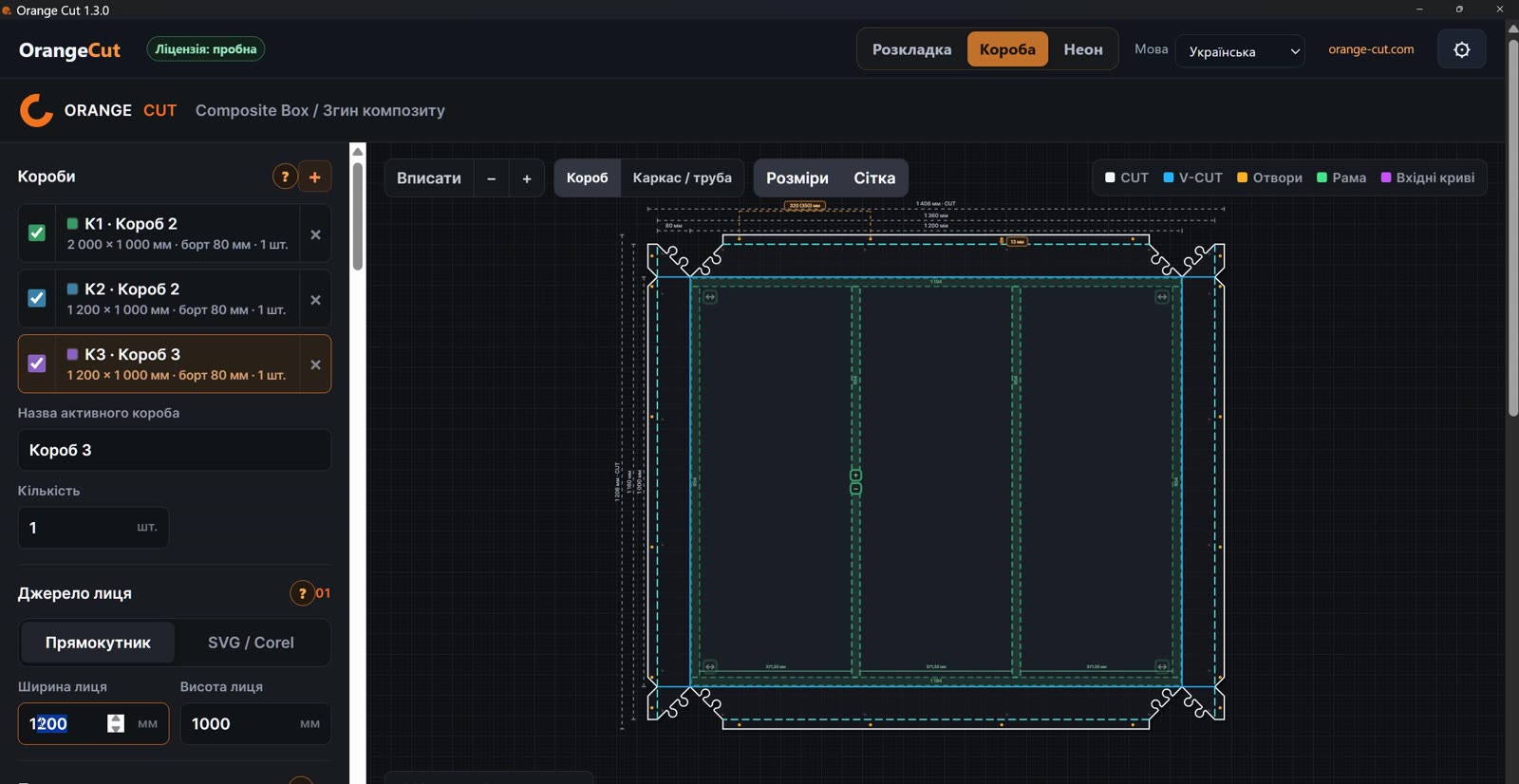
The preview shows the blank with its sides and corner joints. The CUT contour defines the outer box shape; check the full flat-pattern dimensions before exporting.


Prepare aluminum composite panel (ACP) boxes for signs and advertising structures. In the Orange Cut Boxes tab, set the face dimensions, side depth and folds, review the flat pattern and send the production contours to CorelDRAW or SVG.
Open the Boxes tab. Enter the width and height of a rectangular face or use a vector face from SVG / CorelDRAW. Set the number of boxes.
Set the side depth, material thickness and one or two folds. Choose an available corner joint type and review the flat pattern.
If the construction needs a frame, set its parameters. Configure the mounting holes and check their placement in the preview.
Review dimensions, quantities and selected boxes. Send the flat pattern to CorelDRAW or save production SVG for subsequent cutting and machining preparation.
The preview shows the blank with its sides and corner joints. The CUT contour defines the outer box shape; check the full flat-pattern dimensions before exporting.
V-CUT identifies the processing contours for folding the composite panel. They stay separate from the cutting contour so you can assign the appropriate operations in your machining preparation workflow.
Set hole diameter, spacing and margins for the box construction. The preview lets you check the frame and actual hole placement together with the flat pattern.
ACP stands for aluminum composite panel. This page covers preparing flat patterns for boxes made from this material for signmaking.
Yes. The Boxes tab supports one or two folds. Second-fold settings depend on the construction: a facade cassette or a box on a frame.
A production flat pattern in CorelDRAW or SVG: a CUT contour, separate V-CUT contours and mounting holes according to your settings. Set the tool, machining depth and processing parameters in your CAM and on your equipment.
Download Orange Cut for your Windows version, get a free 30-day trial license and open the Boxes tab. Installation and license steps are on the downloads page.