Lettering and logos for signs
Nest vector letter sets, logo elements and shapes of different sizes. For a sign shop, this helps move from a design to a sheet layout sooner.

Orange Cut helps signmakers arrange vector parts on sheet materials and prepare contours for cutting. Work with lettering, logos and irregular shapes from CorelDRAW or SVG.
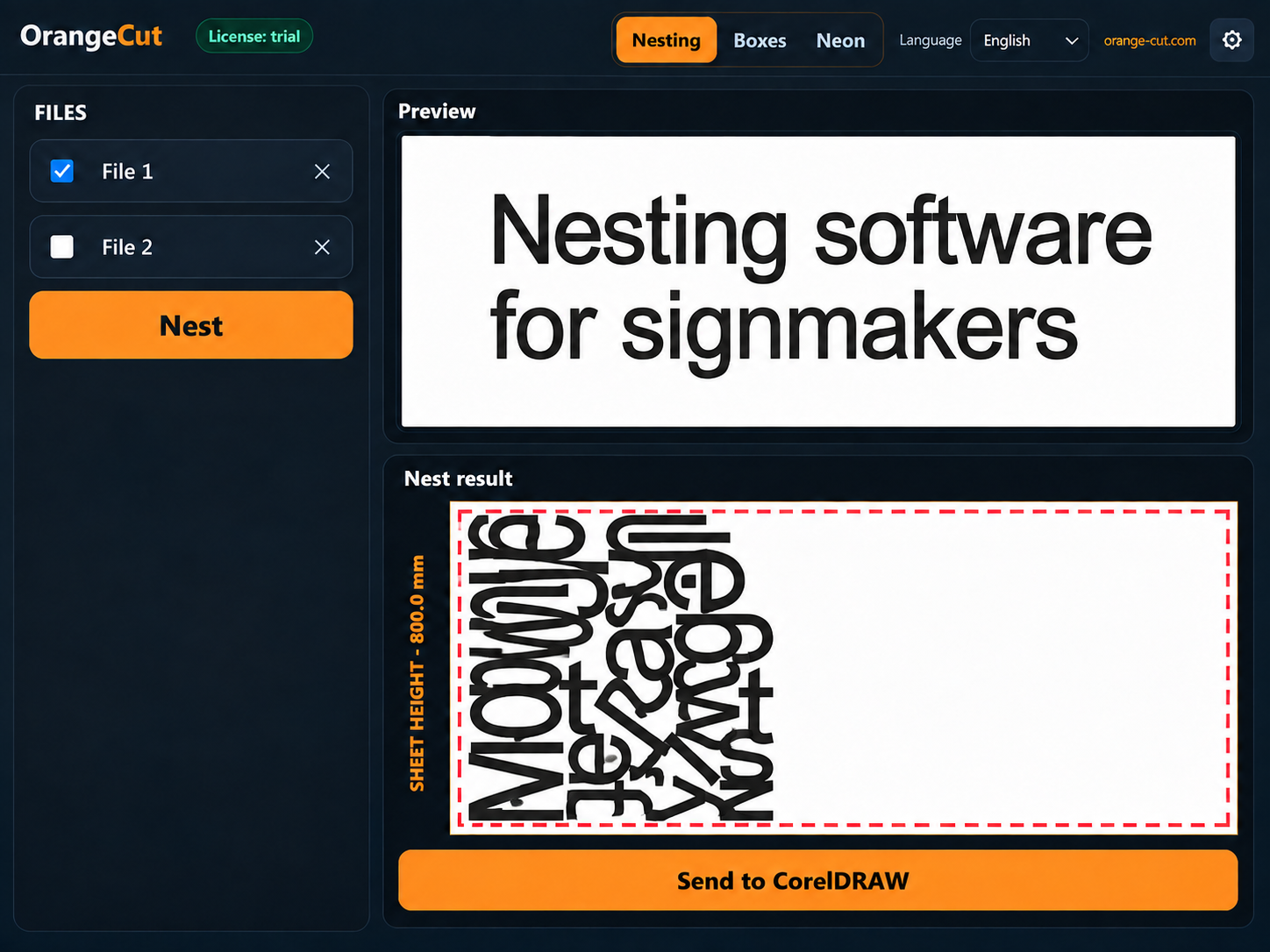
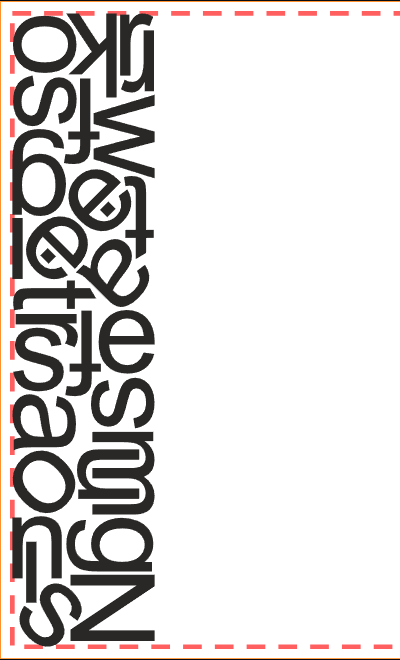
Nesting means arranging parts on a material sheet. For lettering and irregular shapes, the contours matter, rather than only the rectangular boxes around them.
Set part spacing and edge margins for your tool, material and production process. A compact layout must still be suitable for cutting.
Allowed rotations affect the possible placements. Where your job permits it, enable nesting small parts inside other parts.
Compare layouts on your own file. Check the occupied area, remaining material and placement before sending the result into production.
Nest vector letter sets, logo elements and shapes of different sizes. For a sign shop, this helps move from a design to a sheet layout sooner.
For aluminum composite panel boxes, Orange Cut also helps prepare cutting contours, V-grooves, bends and mounting holes. Use the finished contours in your machining preparation workflow.
Another Orange Cut workflow is creating contours and preparing files for illuminated lettering. A neon demonstration will be added to the video section.
Signmakers and fabrication shops preparing vector parts for cutting sheet materials. The main workflows use CorelDRAW and SVG.
Yes. Orange Cut has a setting for nesting parts inside other parts. A particular placement depends on the dimensions, spacing and geometry of your source shapes.
No. Results depend on part shapes and quantities, sheet dimensions, spacing and permitted rotations. Try the app on your own production files to evaluate it.
Send it back to CorelDRAW or export SVG. When working with grooves, preserve the separation between cutting and processing contours in your subsequent workflow.